
Top Step’s Take on the SuiteProjects Pro April 2026 Release
Like the rest of the broader tech industry, Oracle is embracing the capabilities of generative AI to bring greater visibility into the status of projects in SuiteProjects Pro. Compared to prior releases, 2026.1 is noticeably lighter, but it represents a marked shift in direction as a significant portion of development effort went into designing, training, and refining the brand-new AI-powered Project Summary feature.
Here is Top Step’s take on the SuiteProject Pro Spring 2026 release features, now live in production accounts as of April 11th.
Project Summary
The new Project Summary feature leverages generative AI to produce a summary of key project data points and recommendations. To enable the feature, an account administrator must contact SuiteProject Pro Support and request the “Project Summary” internal switch be enabled.
Once enabled, users with the appropriate Project Summary role permissions can navigate to the Project Summary tab at the top of any project.

Navigate to the Project Summary tab and click the Create (+) button > Project Summary, and a blank Project Summary form will appear.
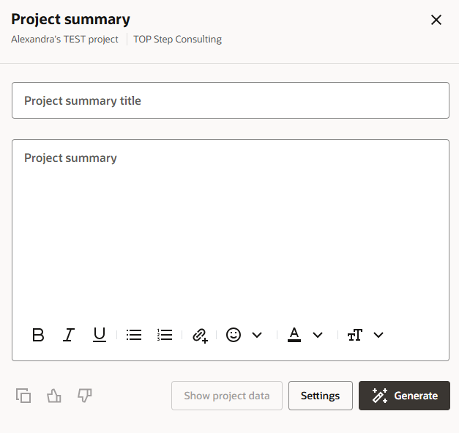
From here, you can give the summary a title, choose from four available content options to include in the auto-generated summary (via the Settings button), and click the Generate button to produce an AI summary of the project which will populate in the Project Summary text box. After the summary has been generated, you can manually modify or add any desired changes to the text before clicking “Save summary.”
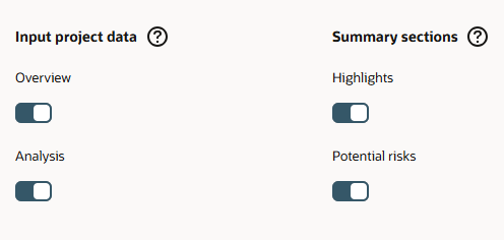
The content options that are available to be incorporated into the AI-generated summary include data from one of (or both) the project’s Project Overview report (located under the project’s Reports > Overview tab) and Financial Analysis report (located under the project’s Financials > Analysis tab). You can also choose to include a summarized Highlights and/or Potential Risks section (both are optional).
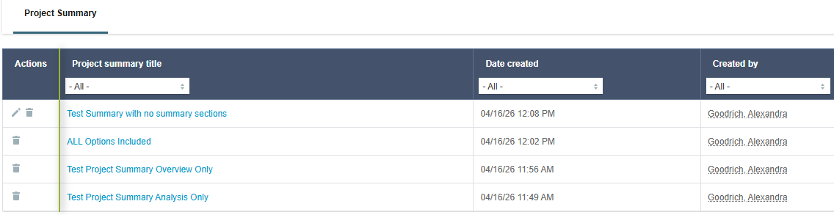
Multiple project summaries can be created and saved throughout the project’s lifespan and are stored in the Project Summary section; however, only the most recently-generated summary is available to be edited. You can view the project data (Overview, Analysis, or both) that was used to generate the report (within the most recently-generated project summary only) by clicking the pencil (edit) icon > Show project data.
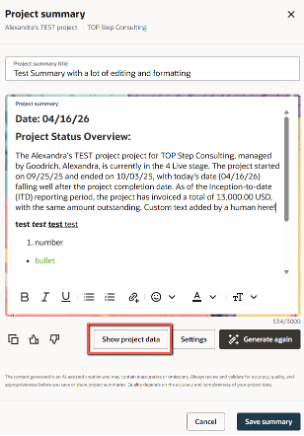
As with all AI-generated information, the content should be validated for accuracy and quality by a human before saving and sharing with stakeholders. From Top Step’s testing, we found the new Project Summary feature to be a straightforward, fun to use, and convenient new tool to quickly pull together a first draft of a project’s key financial and status data points, which can then be edited and easily shared with team members.
Other Enhancements
Additional features rolled out in this release include:
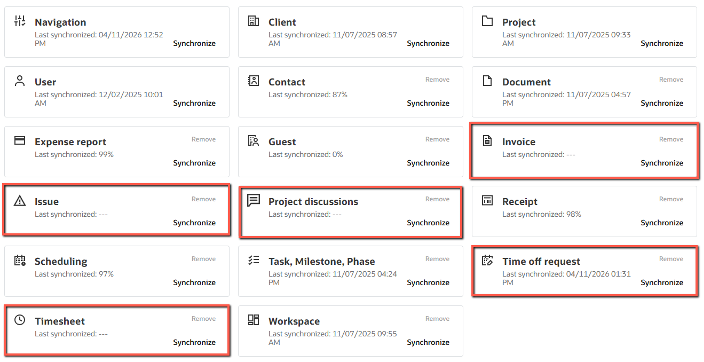
- Expansion of SPP’s Global Search Invoices, Issues, Project Discussion messages, and Time-Off requests objects are now included in search results. All new areas are auto-added by default, but can be removed by admins as desired under Administration > Global Settings > Account > Global Search
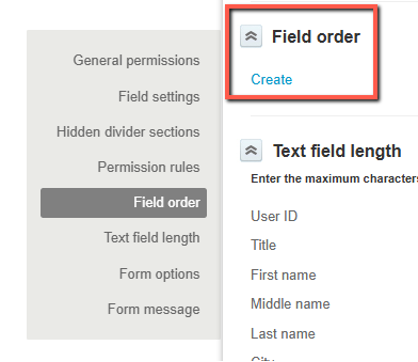
2. Custom field ordering is now available for the Customer and Employee demographic forms. This feature is auto-enabled for the Customer form, but must be enabled by an admin for the Employee form under Administration > Global > Account > Optional Features
3. Caribbean Guilder (XCG) is now a supported currency
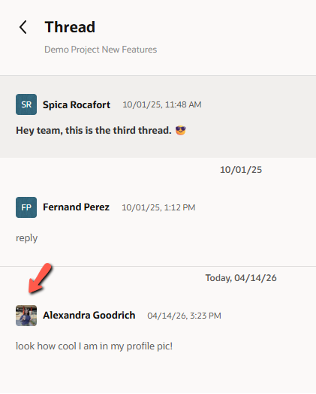
4. In Project Discussions, contributor avatars now show the user’s profile picture (if set under the user’s personal settings) or the user’s initials. Previously, the avatar displayed the user’s initials only
5. Usability improvements to the Resource Center (an optional feature released in SPP 2025.2) include more advanced filter conditions, column customization options, and text-area cell changes
6. Lastly, support for the SPP Exchange Integration Manager (EIM) desktop application ended on Jan 13, 2026. The EIM installer and all access to SPP from EIM may be removed in the future. If you use EIM to integrate SPP with Exchange Online or Exchange Server, you must switch to an alternative solution like Celigo, Boomi, etc. before Oct 1, 2026. Contact Top Step or SPP Support if you or your IT/technical team have additional questions
To access the full list of features from the April 2026 release, click on the “What’s new” rocket icon (located at the top righthand corner of any page while logged into SuiteProjects Pro), then “Read More.”
As with any new release, UI, or features, it is recommended that extensive sandbox testing is completed in your account prior to making any changes in production. Download our eBook to learn more about UI4 and the redesigned user experience.
Contact Top Step if you need assistance implementing any of the new features mentioned in our blog or if you want to learn more about other newly introduced features of the Oracle NetSuite SuiteProjects Pro 2026.1 release.

