
Update Tasks in Bulk Using the SuiteProjects Pro Task Worksheet
One of the view options under Projects > Phases/Tasks that is often overlooked or underutilized is the Task Worksheet. While the Worksheet grid is a bit less aesthetically pleasing than the Outline or List views, it offers some unique advantages and functionality to make bulk changes to tasks that the other views don’t. Additionally, the columns displayed in the worksheet can be added, removed, and rearranged by admins under Application Settings.
Enabling/Locating the Task Worksheet View
First and foremost, make sure you have the Worksheet view enabled by navigating to any project > Phases/Tasks tab > Worksheet:
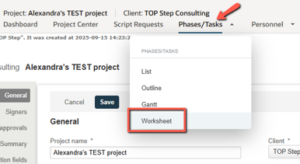
If you do not see it in the dropdown as shown above, you can request the Task Worksheet feature by contacting SPP Support.
Configuring the Task Worksheet Display
To get the most out of this feature, make sure you customize the columns to accommodate the needs of your team. Unlike the other list views in the system, the worksheet display can only be modified by administrators, and the columns/ordering are fixed for all users instead of each user being able to have their own arrangement.
System admins can make changes to the Task Worksheet display under Administration > Application Settings > Projects > Worksheet display.
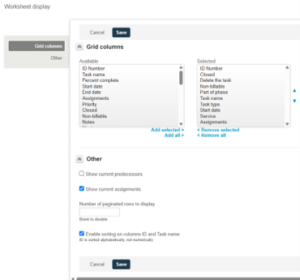
From here, you can add/remove the columns that you want to see in the grid, arrange them in the desired order, and select from a few other optional settings.
Working in the Task Worksheet View
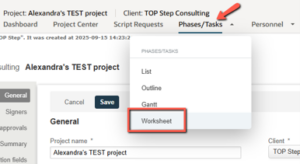
Navigate to any project > Phases/Tasks tab > Worksheet to open the Worksheet View:
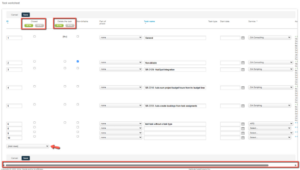
Some of the things you can do in the Task Worksheet include:
- Make changes to multiple tasks all on one screen (modify task names, start dates, services, custom task fields, etc.)
- Delete tasks in bulk (clicking the “All yes” button at the top of the “Delete this task” column checks all tasks in one click)
- Close tasks in bulk
- Update task assignments
- Create new tasks on one screen instead of one at a time (utilize the [Add rows] dropdown at the bottom if you need to add more)
*Note 1: You cannot create, modify, or delete phases from the worksheet view. It displays tasks only.
*Note 2: It is sometimes easy to overlook the scrollbar at the bottom of the worksheet grid. If you have a lot of columns in your view, you will likely need to scroll over to see them all, so locate this scrollbar as shown in the screenshot above to do so.

