
SuiteProjects Pro: How to Create a Custom Dropdown Field with Color-Coded Values
One of the cool features of SuiteProjects Pro that is seldomly utilized is the ability to create a custom dropdown field that changes the background color of the field when shown in a List View and Reports depending on the value selected.
Steps to create a custom dropdown field with a background color:
- With appropriate role permissions to create Custom Fields, Navigate to Administration > [Global Settings] Custom Fields
- At the top left section of the page, click the Create button
 and select Custom Field
- On the first dropdown named Add a custom field to:*, Select which record the custom field will appear. If Project is selected, then this custom field will appear on Project records.
- On the second dropdown named Type of field to add:*, select Tag then click Continue
- Populate all the required fields as desired. The most important information is on the Value list. The values should include the text value followed by a Hex Color Code. One value per line. Example below:
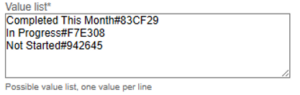
The tag value display text color on List Views and Reports is set automatically to white or black, depending on the background color. - Click Save once done.
Add the Custom Field on your List Views and Reports. Here’s what it will look like on List Views:
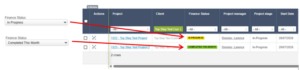
And here’s what it will look like on Reports:

Check with your SuiteProjects Pro administrator if you don’t see these options available to you. Certain role restrictions may prevent a user from seeing all these features.