SuiteProjects Pro: How to Copy Phases and Tasks to an Existing Project
Normally when creating a new Project, you can copy the Phases/Tasks from the Project template. There are instances that if you need to add more Phases/Tasks and the Project already exists, you need to manually add them 1 by 1 which is time consuming. If the same Phases/Tasks structure already exist from an existing Project or from the Project template, you can copy the Phases/Tasks and add it to a different existing Project.
Below are the steps you need to follow:
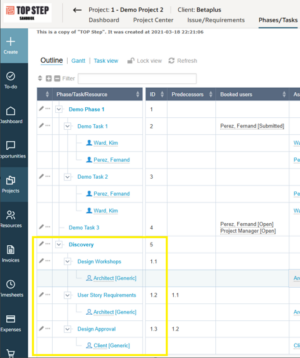
- Open the Project record where you will copy the Phases/Tasks
- Under Phases/Tasks, go to Outline view
- If you are copying all the Phases/Tasks, make sure that the Tasks are associated to the Phase so you can copy everything
- Click the Pencil icon on the same row of Phase or Task you need to copy
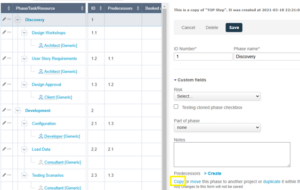
- Look for the “Copy or move this phases to another project or duplicate it within this project”, then click the Copy link
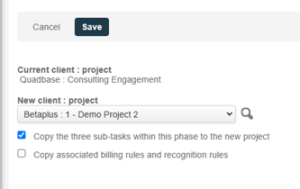
- Select the Project where you are adding the Phases/tasks then check “Copy the [number] of sub-tasks within this phase to the new project”
- Click Save
After completing the steps above, you should be able to see the Phases/Tasks added to the Project.