
Speed Up Time Entry with Time Card Templates in SuiteProjects Pro Mobile
SuiteProjects Pro Mobile makes it easy to record recurring time patterns using time card templates. These templates are prefilled time cards you can reuse when completing a timesheet. Using these enables you to
- Save templates easily: Create a template from any existing time card in your open or rejected timesheets. Before saving, you can modify any of its details to suit your needs.
- Manage your templates: Access your list of time card templates from the app settings, where you can view, edit, or delete any existing templates.
- Reuse templates anytime: Add a prefilled time card to an open or rejected timesheet using one of your saved templates — either directly from the timesheet you’re completing or from the template list.
Your personal time card templates are securely stored on the SuiteProjects Pro server, making them accessible from any device where you record time in SuiteProjects Pro Mobile.
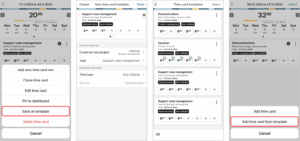
Adding a Time Card Template
To create a template, open any time card from your open or rejected timesheets, make any desired changes, and save it as a template
To add a time card template:
1. Go to an open or rejected timesheets containing the time card you want to save as template.
2. Tap the more icon  in the time card and select Save as template.
The new time card template appears.
3. Change any of the time entries as needed.
4. Change the selected Project and Task as needed.
Viewing, Modifying or Deleting Time Card Templates
You can access the list of time card templates from the app settings, and view, modify or delete any of your existing time card templates.
To view, modify or delete time card templates:
1. Tap the menu icon  in the bottom-left corner.
The navigation drawer appears.
2. Tap Settings.
The Settings screen appears
3. Tap Time card templates.
The time card template list appears.
4. Do any of the following:
- Tap the more icon in a time card and select:
-
-
- Edit to open the time card template and change the selected project or task, and any of the time entries as needed.
- Delete to delete the time card template.
-
- Delete multiple time card templates at the same time. To do so, tap Select, select the time card templates you want to delete, and tap the delete icon
 in the toolbar.
Adding a Prefilled Time Card to a Timesheet from the Template List
You can add a prefilled time card to any open or rejected timesheet using a time card template from the list.
The following steps describe how to add a prefilled time card to any open or rejected timesheets from the template list. You can also add a time card using a template while you are recording time on your timesheet.
To add a prefilled time card to a timesheet from the template list:
1. Tap the menu icon in the bottom-left corner.
The navigation drawer appears.
2. Tap Settings.
The Settings screen appears
3. Tap Time card templates.
The time card template list appears.
4. Tap the more icon in a time card and select Add to timesheet
5. Select the timesheet you want to add the prefilled time card to.
The timesheet appears and shows the prefilled time card.
6. Change the time card properties and time entries as needed.

