
Right Person, Right Project: Compare Resources Before You Book in SuiteProjects Pro
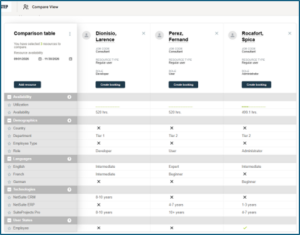
When you need a resource in a project, Resource Compare View lets you review potential resources side by side before creating a booking. Compare availability, skills, and other employee details to identify the best fit.
If your account uses resource skills, you can display those skills in Compare View to help identify the most suitable resource for a project based on the skills required.
How to Compare Resources
- Go to Resources > Compare View.
- Click Add Resource, select the employees you want to compare, then click OK.
- Enter the required start and end dates under Resource availability.
- Review each resource’s availability, skills, and configured employee details.
- Click Create Booking from the selected resource’s card to create the booking.
You can also customize the information shown in Compare View:
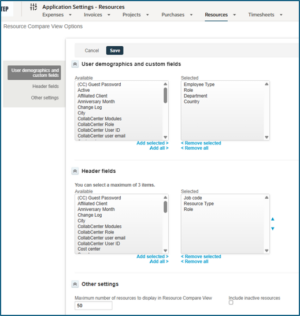
- Go to Administration > Application Settings > Resources > Resource Compare View Options.
- Select the fields to display under User demographics and custom fields.
- Select up to three fields under Header fields.
- Optional: Choose whether to include inactive resources.
Resource Compare View helps you compare potential resources before creating a booking, so you can select someone who is both available and suited to the project’s needs.