
Publishing Your Reports Manually using Business Intelligent (BI) Connector
The Business Intelligence Connector is an add-on to SuiteProjects Pro that allows list views and reports built in the application to be fed to other applications or to the SuiteProjects Pro scripting engine.
You can publish your saved reports if the Business Intelligence (BI) Connector feature is enabled for your account and if you have the Publish reports role permission.
Take note that publishing a report manually is equivalent to running that report and exporting the report data as a CSV file. It take a snapshot of your data at the time of publication.
How to Publish a Report :
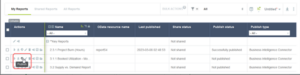
- Navigate to Reports > Saved reports > My reports. This list shows the reports you own.
- Find the report you want to publish and Click the Publish icon in the Action column.
- If your role permissions allow you to share your published reports with others, and if you are publishing a shared report, choose a Permission setting for BI Connector. The option you choose determines whether others have access to your published reports and what data they can see.
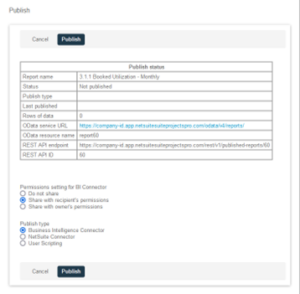
- Choose a Publish type. The option you choose determines whether the published report data is available for use with connected BI tools, or for export to NetSuite using SuiteProjects Pro NetSuite Connector, or exclusively for use with user scripting.
- Click Publish.A confirmation message and the publication status information are displayed on the page.
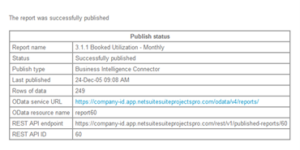
Review the following guidelines before publishing a report:Publication status- Publishing again will overwrite the previous version
Publish type (scope of use)
- May be locked if already used with NetSuite Connector + workflows
Last Published
- Shows when the report was last successfully published
System-generated details (read-only):
- OData Resource Name (used for BI tools)
- REST API Endpoint
- REST API ID
⚠️ These cannot be changed
Once the Report has been publish, use the URL that contains the domain for your SuiteProjects Pro account followed by the path to the OData resource.
https://<account-domain>/odata/v4/reports/<resource-name>
Then, use your OData feed User name and Password:
User Name The user name contains your SuiteProjects Pro Company ID and User ID, separated by a back slash (\): <CompanyID>\<UserID>
Password Your SuiteProjects Pro password

