
Maximize Project Visibility with SuiteProjects Pro’s Project Status Summary
The Project Status Summary (PSS) feature allows you to create customizable project status page, offering a clear overview of important project details such as project progress, financials or budget, quick links to key areas (like the dashboard, time entries, and financial analysis), project notes, and outstanding charges of the project. You can tailor the view to display only relevant information, and there’s an option to control what clients see, ensuring they access only the data you want to share.
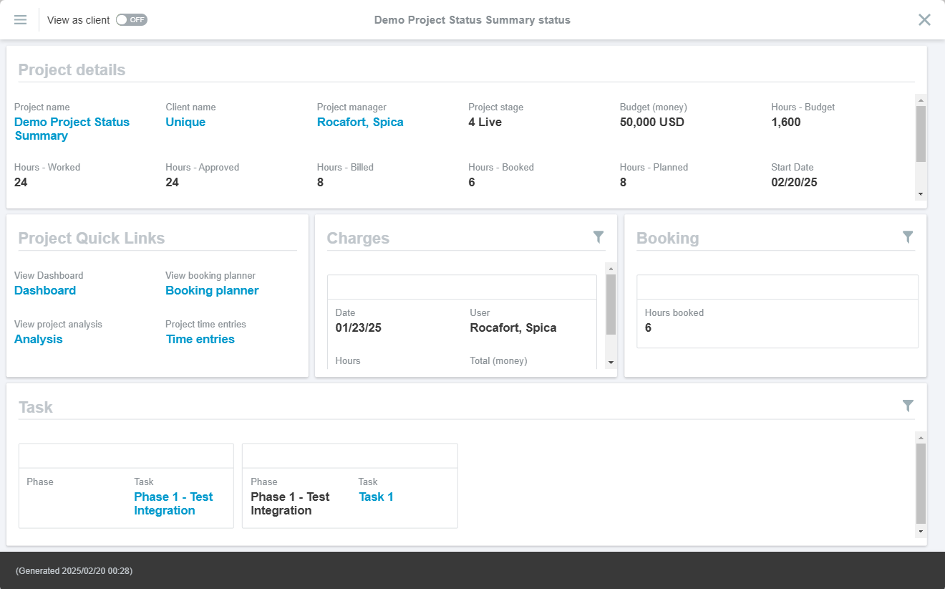
To enable this feature, contact SuiteProjects Pro support and request to enable: “Enable project status summaries.” Once enabled, for non-admin users, set the following permissions in the role settings:
- View Project status page
- View and modify Project status page
Accessing Project Status Summary
Most companies use the Project Status Summary and access it through QuickView for quick and convenient project insights.
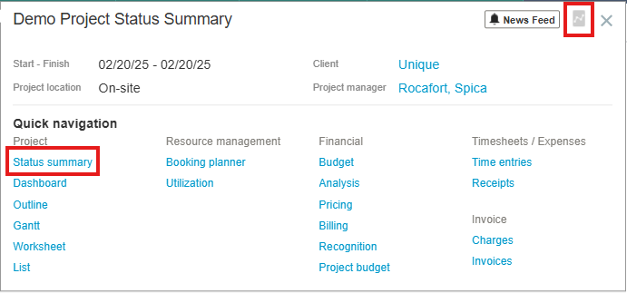
Customizing Project Status Summary Portlets and Items
Portlets are highly customizable, allowing you to add any relevant information related to the selected portlet.
- In the Project > Click the PSS icon.
- Click the Options icon.

- Click Edit.
- Click Add Portlet icon
 > Then you’ll have the option to create a portlet for the following:
- Enter the name of the portlet.
- Click Apply.
Once the portlet has been created, you may modify it by clicking the Edit portlet icon  located within the portlet itself. To add an Item inside the portlet:
- Click
 within the portlet.
 - Select the item you need to display.
- You have the option to enter your own title or leave it blank.
- Click Apply.
You can add as many items as needed and drag them to position anywhere within the portlet. Additionally, you can filter specific records to be displayed within the items. For example, in the Charges Portlet:
- Click the Define how cards are filtered icon.
- Click the Add Condition button.
- Select your condition.
- Click Apply
Once all changes are done, click Save.
Viewing as a Client
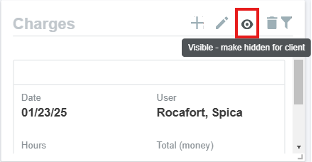
A specific portlet can be hidden from the client’s view. Similarly, you can select which items inside the portlet are visible to the client.
Portlet: Items Inside Portlet:
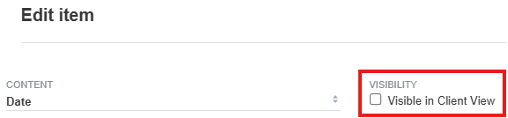
To check what client’s can view:


