
Manage All your Reports with the Report Status Page in SuiteProjects Pro
Stay on top of your reporting with the Reports Status Page – your central hub for monitoring, managing, and optimizing reports in your account. It gives you visibility into report activity and allows you to quickly address issues such as long-running reports, outdated reports, or scheduled reports that may affect system performance.
In SuiteProjects Pro, you can navigate to Reports > Status. This page includes three main views/tabs:
- All View
The All view/tab in the Reports Status page provides a comprehensive overview of all reports in your SuiteProjects Pro account.
Using the information available in this view, you can quickly identify reports that may need attention and perform bulk actions on selected reports, including:
- Delete reports that are no longer needed – The Date Last Run column can help determine if a report is still being used.
- Remove reports from schedules – Stop recurring reports that are no longer required.
- Update report ownership – Reassign reports when the current owner is inactive or no longer responsible. Columns like Owner Active and Shared With Active can help identify when ownership updates may be necessary.
- Running View
The Running view/tab displays reports that are currently being processed. Reports that most likely shows here will be report that were ran in the background. If a report is taking too long or affecting performance, administrators can select one or more reports and stop them directly from this view.
- Maintenance View
The Maintenance view/tab helps administrators identify scheduled reports whose owners are no longer active and scheduled reports are inactive. This makes it easier to reassign and reactivate scheduled reports to ensure they continue running as expected.
How to Use Bulk Actions on the Reports Status Page
You can perform bulk actions from the All, Running, or Maintenance tabs by following these steps:
- Navigate to Reports > Status > All/Running/Maintenance
- Select the reports you want to update by checking the boxes beside them.
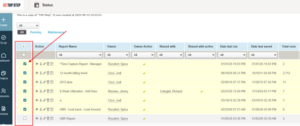
- Click the Bulk Action icon (Play icon) in the same column.
- A popup window will appear where you can choose the action you want to apply to the selected reports
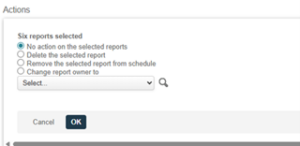
- Click OK to apply the action
Best Practice:
Review the Reports Status page regularly to remove unused reports, stop unnecessary scheduled reports, and ensure reports have active owners. This helps keep your reporting environment organized and running efficiently.

