
How to Use Form Permission Rules in SuiteProjects Pro to Display Fields Conditionally
Many SuiteProjects Pro accounts contain numerous standard or custom fields that are not always relevant or populated, depending on the value of another field. For example, a custom field such as Project Service Type may determine which additional fields Project Managers or other users need to complete. Certain fields may only need to be populated when the Project Service Type contains a specific value.
To improve usability, we recommend using Form Permission Rules to show or hide custom fields based on whether those fields are intended to be populated. This helps ensure that users only see the fields they need to complete or reference on the Project’s Properties page, creating a cleaner and more efficient experience.
Example requirement:
- If a Project Service Type is any of the following:
- Tax: Individual Compliance
- Tax: Business Compliance
- Tax: Projects
- Then Show only the following fields:
- Tax Year
- Tax Form
- Tax Return Status
Important Steps:
These steps reference the Project’s Properties page and form. The same process can be applied to any form that can support form permission rules.
- Navigate to an existing record Project’s Properties page or on a new Project form: Project > Create > [Projects] New …
- At the top right section of the page, click the small arrow down button
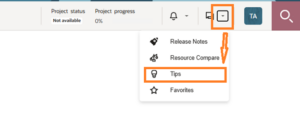
- A small pop-up window will appear, click Modify the form permissions.
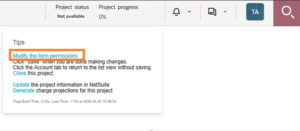
- Another pop-up will appear, click the Permission rules section at the left pane of the pop-up window. Then click the Create link under the Permission rules section.
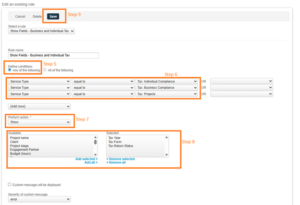
- Add a name. Then under Define conditions, select either Any or All of the following, depending on the criteria. In this case, Any of the following is needed to accomplish the example requirement.
- We can set the Conditions in the custom field to reference. We can also add additional rows if needed.
- Set the Perform Action = Show
- On the Available fields, select only the fields that will show if any of the Conditions are met.
- Click Save on this form and the next form that will appear in front of the screen.Here’s a screenshot of the form:
- Refresh the page. Once the Project’s Service Type is either of the mentioned Service Types, the three fields we set on Step 8 will now show. Those fields will not show on other Service Types.
Check with your SuiteProjects Pro administrator if you don’t see these options available to you. Certain role restrictions may prevent a user from seeing all these features.

