
How to Divide Planned Hours in SuiteProjects Pro
By default, when an account is set up to enter planned hours for each assigned user, assigning an Assignment Group to a task applies the planned hours to each member of the group.
For example, if you enter 20 planned hours for a task and assign an Assignment Group with 5 members, each member is assigned 20 planned hours, resulting in a total of 100 planned hours across all assignments.
In some cases, users may want the 20 planned hours to be shared among the group, rather than assigned to each resource. SuiteProjects Pro provides a Divide Hours option that automatically distributes the task’s planned hours evenly across all members of the Assignment Group.
To use this feature, follow the steps below:
- Open the desired Project and navigate to Phases/Tasks in Outline View
- Select the task you want to update
- In the Assignments section, assign an Assignment Group to the task.
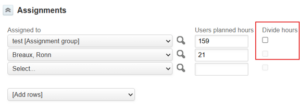
- Note: The Divide hours checkbox is disabled until an Assignment Group has been assigned. If a resource is assigned instead of an assignment group, the Divide hours checkbox will still be disabled
- Enable the Divide Hours checkbox
- Click Save
What Happens Next?
- The task’s planned hours are distributed evenly among all members of the Assignment Group.
- If members are added to or removed from the Assignment Group later, the planned hours are automatically recalculated.
Note: The Divide Hours checkbox is available only when the Input planned hours for each user assigned to a task account setting is enabled. To enable this setting, Administrators can contact SuiteProjects Pro Support.