
How to Copy Billing Rules to Another Project in SuiteProjects Pro
There are two ways to copy billing rules to another project, depending on whether the destination project already has billing rules.
Scenario 1: The Destination Project Already Has Billing Rules
If the destination project already has existing billing rules, there is no direct way to copy billing rules from one project to another.
Instead, you must first associate the billing rule with a task in the source project. Once associated, you can copy the task to the destination project along with its billing rules.
Step 1: Associate the Billing Rule with a Task
- Open the project containing the billing rule you want to copy.
- Navigate to Financials > Billing.
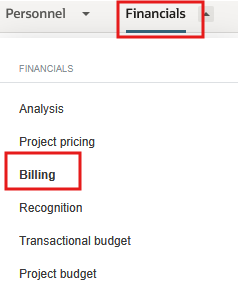
- Open the billing rule you want to copy.
- Navigate to the Billing Rule Filters section.
- Under Task, click Create.
- Select the task you want to associate with the billing rule.
- Click Save.
Step 2: Copy the Task and Its Associated Billing Rule
Once the billing rule has been associated with the task, you can proceed with copying the task to the destination project.
- Open the source task associated with the billing rule.
- Under Copy or move this task to another project or duplicate it within this project, click Copy.
- Under New client / project, select the destination project.
- Under Copy associated billing rules and recognition rules, make sure the checkbox is selected.
- Click Save.
Important: The billing rule will only be copied to the destination project if it is filtered to the task being copied. If the billing rule is not associated with that task, it will not be copied.
Scenario 2: The Destination Project Does Not Have Any Billing or Recognition Rules Yet
If the destination project has already been created but does not have any billing or recognition rules, you can copy the rules directly from another project.
Follow these steps:
- Navigate to Projects > Projects.
- Select the appropriate Project Stage.
- Open the destination project.
- Navigate to the Financials tab.
- Locate the Tips section.
- Click the Copy billing rules from another project link.
- Select the source project from the dropdown list.
- Click Copy.
The billing rules will then be copied from the selected source project to the destination project.
Summary
- If the destination project already has billing rules: First associate the billing rule with a task, then copy the task with its associated billing and recognition rules.
- If the destination project has no billing or recognition rules: Use the Copy billing rules from another project option under the Financials tab.