
How to Adjust Historical Costs for More Accurate Project Profitability in SuiteProjects Pro
SuiteProjects Pro offers a solution to update users’ historical costs based on actual utilization via an Advanced Report, delivering more accurate profitability reporting. With this feature, you can run a report to generate users’ actual utilization for a prior period and then prompt the system to automatically populate/update the users’ cost tables with the adjusted hourly rate values. Keep in mind that if you are tracking 2 or 3 different costs, this feature only applies to the primary cost level.
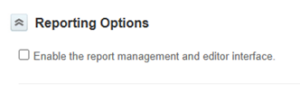
- This feature only works with the old reporting user interface, so you will need to update your own user settings to use the old reporting UI before you begin. Go to Administration > Users > Users > your user record > scroll down to Reporting Options > uncheck the “Enable the report management and editor interface” box if it is checked > Save
- Locate the report by navigating to Reports > Advanced > Percent historical utilization (under Resources reports)
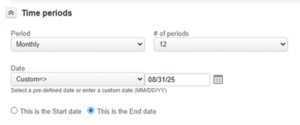
- Configure the report’s settings for all users that you wish to update:a. Set the period to the desired historical range to use for the actual utilization calculation
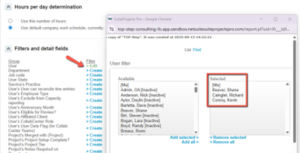
b. Under the Filters and detail fields section, add the desired users to the User filter
- Run the report
- The report will display the percent historical utilization metric for each user per time period selected. This value will be used as the denominator for the historical cost calculation for each period
- Click on the lightbulb (tips) icon at the top right of the screen > Click here to adjust the users loaded cost
- Check the “Over-write existing costs” box and click “Run Cost Adjustments”
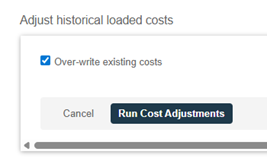
- The cost adjustments will run and display the updates. Note that all users MUST have a current primary loaded cost for the feature to work, as this is the value that the system uses for the numerator of the cost calculation.
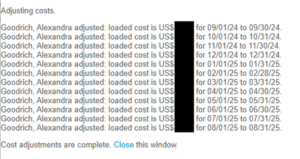
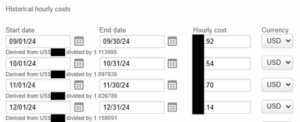
- Verify that the user’s cost table has been updated by navigating to the user’s record > Costs tab
- If you normally use the new reporting interface, be sure to go back and re-check the box from Step 1 when you’re done.

