Control which Timesheet Periods are available to Users in SuiteProjects Pro
After a period is closed and you want to prevent users from creating timesheets for past dates, you can use the “Enabled timesheet open/closed periods” feature. This feature allows you to specify which specific weeks a user is permitted to create a timesheet. To enable this internal switch, you must contact SuiteProjects Pro Support by submitting a support ticket.
Once the feature is enabled, you can define the allowed periods by navigating to Administration > Application Settings > Timesheet Settings > Other Settings.
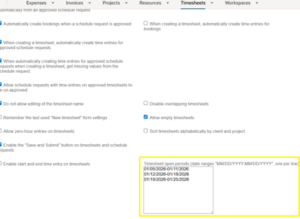
Note: Timesheet open periods must be entered using the date range format MM/DD/YYYY-MM/DD/YYYY, with one range per line. The date ranges must align with the timesheet period configured in the account (for example, Sunday to Saturday or Monday to Sunday). Do not include spaces before or after the hyphen in the date range, as entries with spaces will not be accepted by the system.
To close a period, simply remove it from the list so that users can no longer create timesheets for that period.
If a user has already created a timesheet for a period, they will still be able to submit it for approval even if the period is later closed.
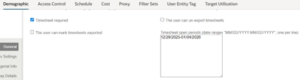
If a specific user needs to create a timesheet outside of the allowed company periods, a user-specific timesheet period can be configured in the user’s Demographic settings. This allows you to open a timesheet period for an individual user only.