
Adjust Timesheet Report PDF to Show all Data in NetSuite Projects Pro
When downloading a Timesheet Report, not all columns and data are displayed.
The Timesheet Report Layout in NetSuite Projects Pro is customizable to fit a company’s needs. Users can select which fields to display in the report via a drop-down in the related column. Additionally, users may add text or HTML to the top or end of the report and configure Adobe Acrobat PDF settings to ensure the report prints clearly.
To download a Timesheet Report and ensure all columns are displayed, follow these steps:
- Navigate to the Timesheet Report:
- Go to Timesheets > Timesheets.
- Select the timesheet record you want to report on.
- Click on Report and then select the PDF link.
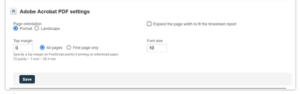
- Adjust Adobe Acrobat PDF Settings for Layout: To ensure all columns appear in the PDF, navigate to the following settings:
- Go to Administration > Application Settings > Timesheet Settings.
-
- Under Timesheet Report Layout, check the Adobe Acrobat PDF Settings. Here are the key adjustments you can make:
- Column Layout:
- Under the Timesheet Report Layout > Columns, check if the number of columns selected fits well with the Page Orientation in Adobe Acrobat PDF settings.
- If there are more columns, consider selecting the Landscape orientation option to avoid cutting off data.
- Expand Page Width:
- Under Adobe Acrobat PDF Settings, mark the checkbox for Expand the page width to fit the timesheet report. This will ensure all columns are included in the report.
- Adjust Font Size:
- Under Adobe Acrobat PDF Settings, adjust the Font size as needed to make the report more readable.
3.Save Changes:
-
- After adjusting these settings, click Save to apply the changes.
This ensures that all data and columns are properly displayed when the Timesheet Report is downloaded in PDF format.

